Please enable Javascript in your browser. You will not be able to use some features!
India
Customer
Care
Contact Us
Follow us on:
Home
›
D
› Discord Customer Care
Discord Customer Care
Updated on Wednesday, 8 July 2026 - 5:26pm
Website:
Official Website
iOS App:
Discord - Talk, Play, Hang Out
Android App:
Discord - Talk, Play, Hang Out
Email
support
[at]
discord [dot] com
(For Customer Support)
Important Link
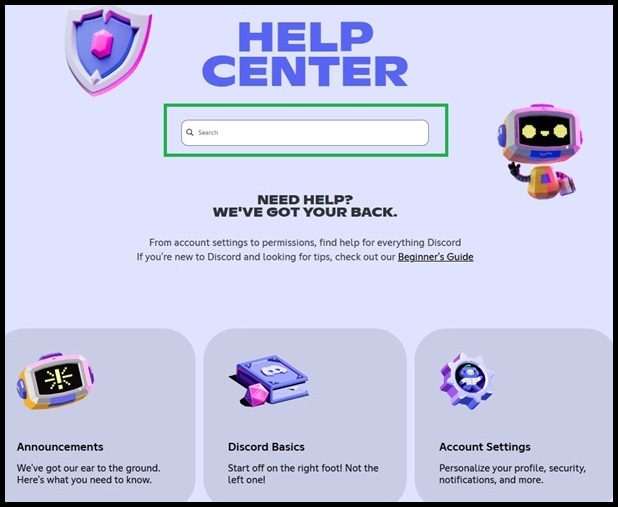
Help Center
How Can I Leave or Delete a Discord Server?
To Leave a Server
On Computer:
Open the Discord
App
or
website
.
Find the server icon on the far-left list.
Right-click the server icon.
Click Leave Server at the bottom.
Click Leave Server again to confirm.
On Mobile (Phone or Tablet):
Open the Discord Mobile
App
.
Tap the server icon on the left.
Tap the three dots next to the server name at the top.
Scroll down and tap Leave Server.
Tap Yes or Leave to confirm.
To Delete a Server
On Computer:
Click the server name in the top-left corner.
Select Server Settings.
Scroll down the left menu and click Delete Server.
Type the server name to confirm, or enter your 2FA Code (if you have two-factor security turned on).
Click Delete Server to finish.
On Mobile:
Tap the server name at the top of the screen.
Tap the gear icon for Settings.
Tap Overview.
Scroll down and tap Delete Server.
Type the server name or enter your 2FA code, then tap Delete.
Social Sites
Facebook
Twitter
YouTube
Instagram
Linkedin
D
Social Websites
Add new comment
Facebook Like
Google Plus One
Tweet Widget